Welcome to TECH-VA Documentation#
Installation#
Install Docker software from docker.com
Please check that docker is running.
-
Download tech-va archive from link provided in email.
It’s a zip archive, password protected. Please make sure your anti-virus software not blocking operation system from extracting files from archive.
-
Place a zip file somewhere where you want to store data for our client.
Usually not a system disk. (for example e:/tech-va/)
-
Unzip, please use provided password
- Navigate to folder from 2 in
cmd/PowerShell/terminal -
Load tech-va docker:
docker load -i tech-va-cloud-1.0.101.img or tech-va-enterprise-1.0.101.img(please make sure version is matching to downloaded)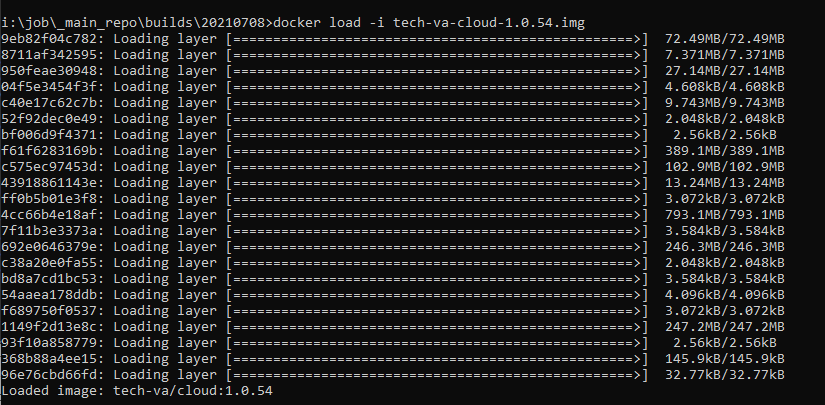
if image loaded successfully then you can delete file tech-va-cloud-1.0.101.img
-
Cloud
Open file cloud.bat(start_cloud.sh) in text editor and modify first 2 lines:

in line: set TOKEN=please_put_tokenReplace:AddTockenHere to the token provided in emailin line: set EXTERNAL_PATH=please specify path for example e:/tech-va/dataReplace: Add_Path_to_folder/data to the path where you want to locate data foldersave cloud.bat(start_cloud.sh), close.
Enterprise
Open file start_enterprise.sh(bat) in text editor and modify first 2 lines:
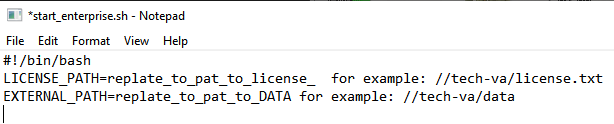
in line LICENSE_PATH= specify path to license.txt - can be any locationin line EXTERNAL_PATH= specify path to data folder - this path need to be intranet path, nuke plugins will be loaded from this path too -
Linux/Mac users - please make sure that folder data has user’s permissions to write and read. For full studio pipeline integration - make sure all users have access to this folder to read and write.
-
In command line start cloud.bat (linux and mac os: bash start_cloud.sh)
for first time install agree with EULA and then you should see:
Cloud

Enterprise

If at this step you experiencing any issues, please contact us via email. Please copy information from terminal and place it txt file and attach to email please.
To stop service - press CTRL-C in the terminal where cloud.bat(sh) is running.
IF TERMINAL WINDOW WAS CLOSED OTHER WAY - THEN DOCKER NEED TO BE RESTARTED OTHERWISE IT WON’T START.
To start tech-va again, for example after restart:
Navigate to tech-va/ working folder and start cloud.bat from terminal (linux and mac os: bash start_cloud.sh).
Nuke Integration#
- Navigate to folder tech-va/data/nuke
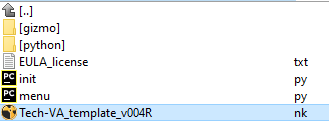
- copy information from init.py and menu.py to your .nuke/init.py menu.py
.nuke default folder location
Linux: /home/login name/.nuke
macOS: /Users/login name/.nuke
Windows: C:\Users\user name.nuke
If you testing our solution in studio pipeline - make sure that Nuke is loading correct init.py and menu.py
First time run Nuke check#
- Start Nuke. You should see our tools:
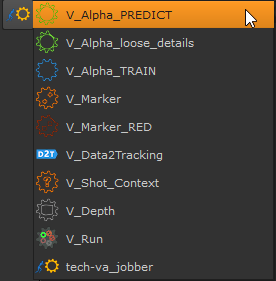
We need to check if tech-va pipeline is up and running. To do so, please
navigate to working folder: tech-va/data/nuke/
and import Tech-VA_template_v004R.nk template to Nuke
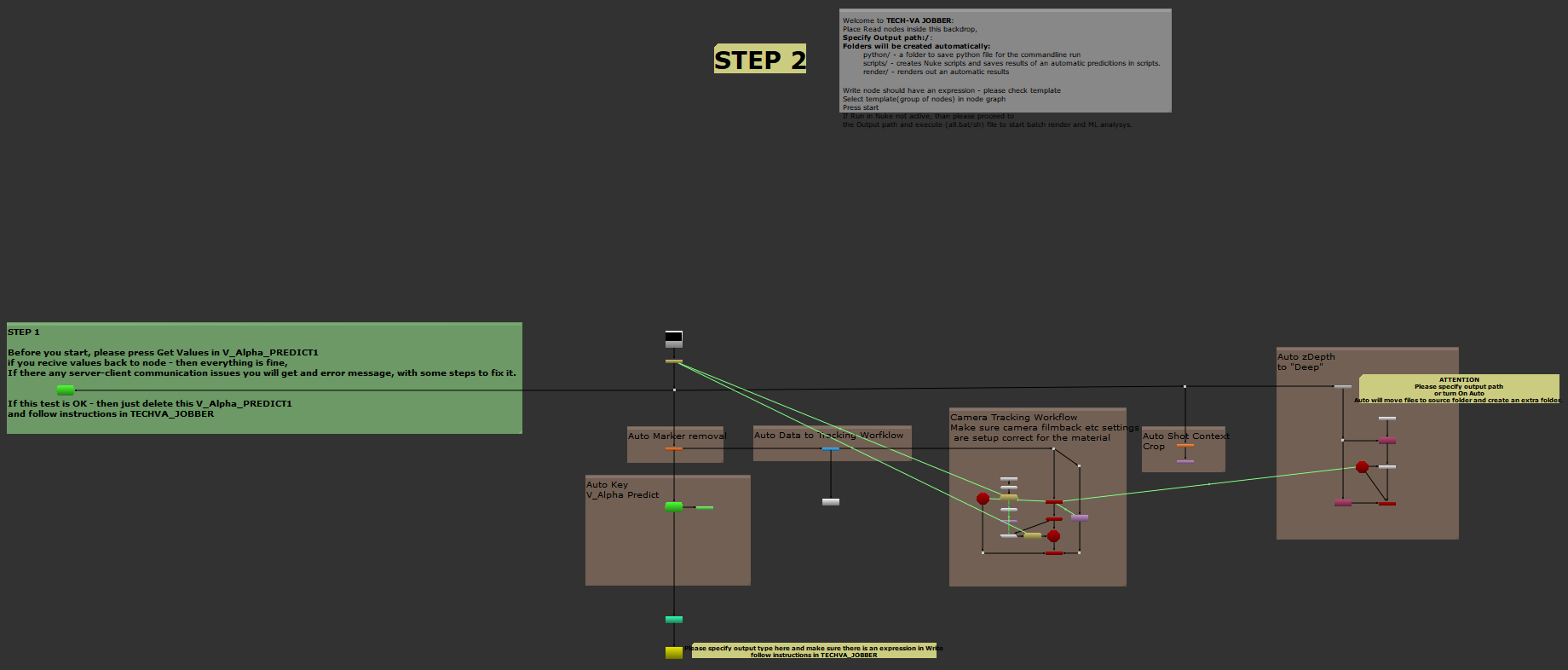
Please follow instructions in STEP 1
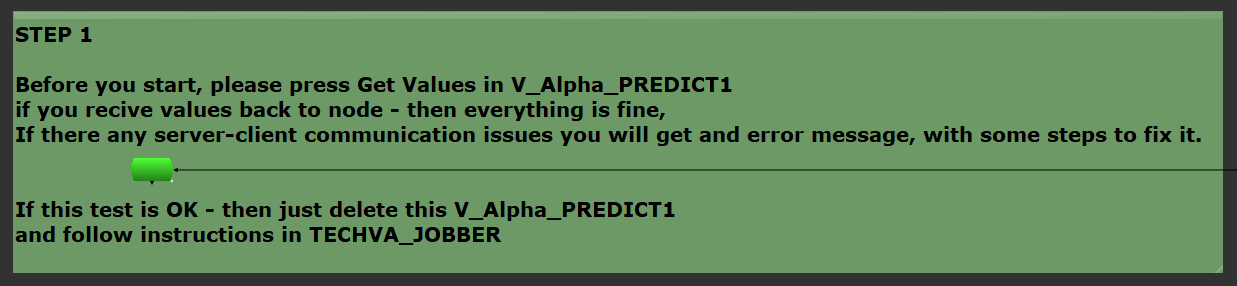
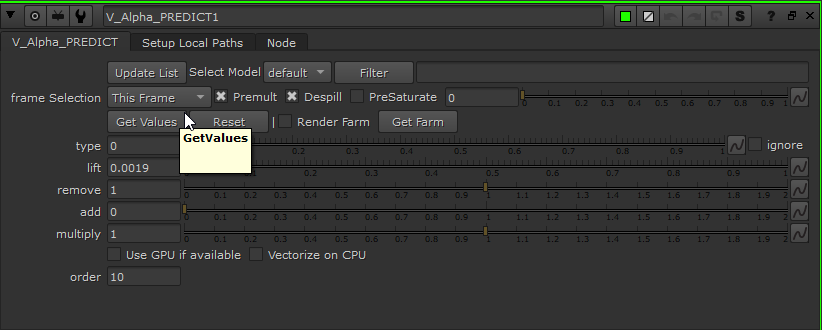
If Nuke was frozen for more than 20 seconds and you see this error message in nuke terminal:
[23:39.04] ERROR:
TECH-VA | ERROR | V_Alpha_PREDICT: timeout error: Please check that docker is running (you need to use start.bat, start.sh, provided with current TECH-VA build).
If docker is running, please try to increase Time Out.
Please re-install TECH-VA software, visit tech-va.com for more information.
Then please make sure that Service cloud.bat(start_cloud.sh) is up and running.
If after that it’s not working, please re-isntall tech-va. Or send us an email.
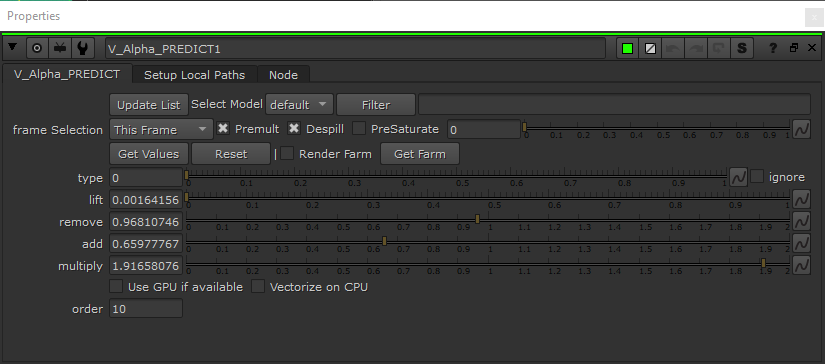
If some values returned back to node - then everything is up and running correct! Congratulations!
Join our telegram channel for more support.
Welcome to Auto Compositing Workflow by TECH-VA!#
You can try individual tools or run entire template for the shot, or use jobber for batch shot process.
Please follow instructions in Nuke template.
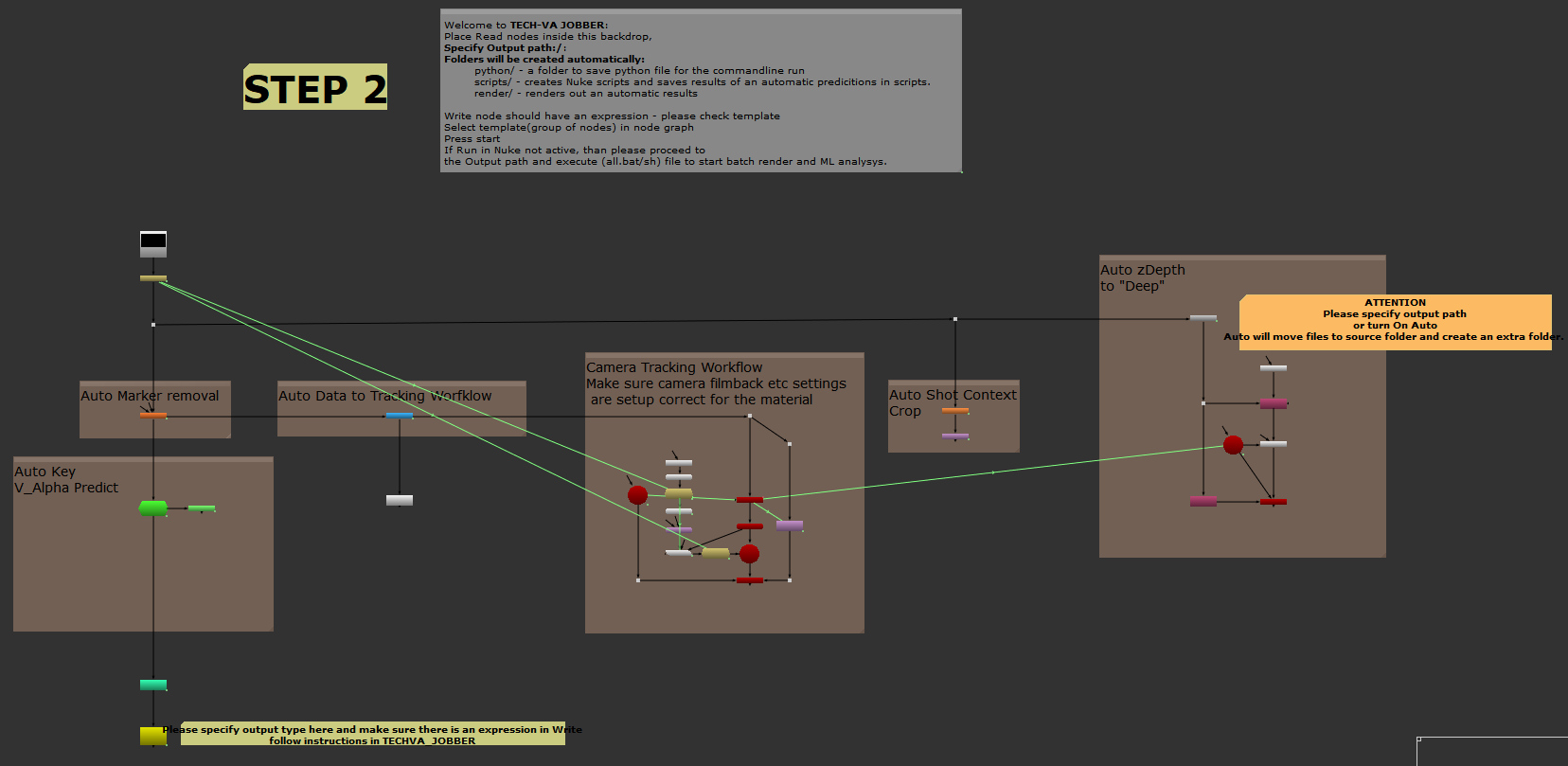
To get an automated result just press a button in our gizmos:
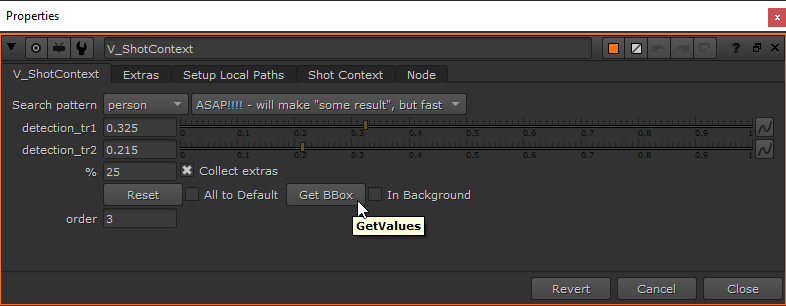
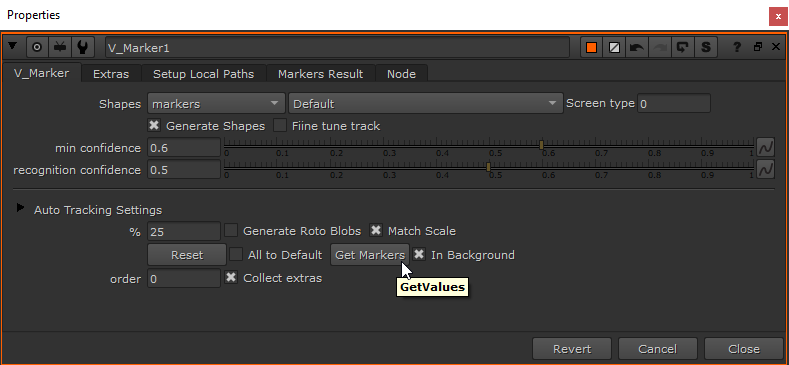
Gizmos: V_Marker, V_Shot_Context, V_Depth has option In Background.
(V_Depth - has only pop up option)
This means that you can load result later, after analysis finished.
Current Nuke session won’t be frozen.
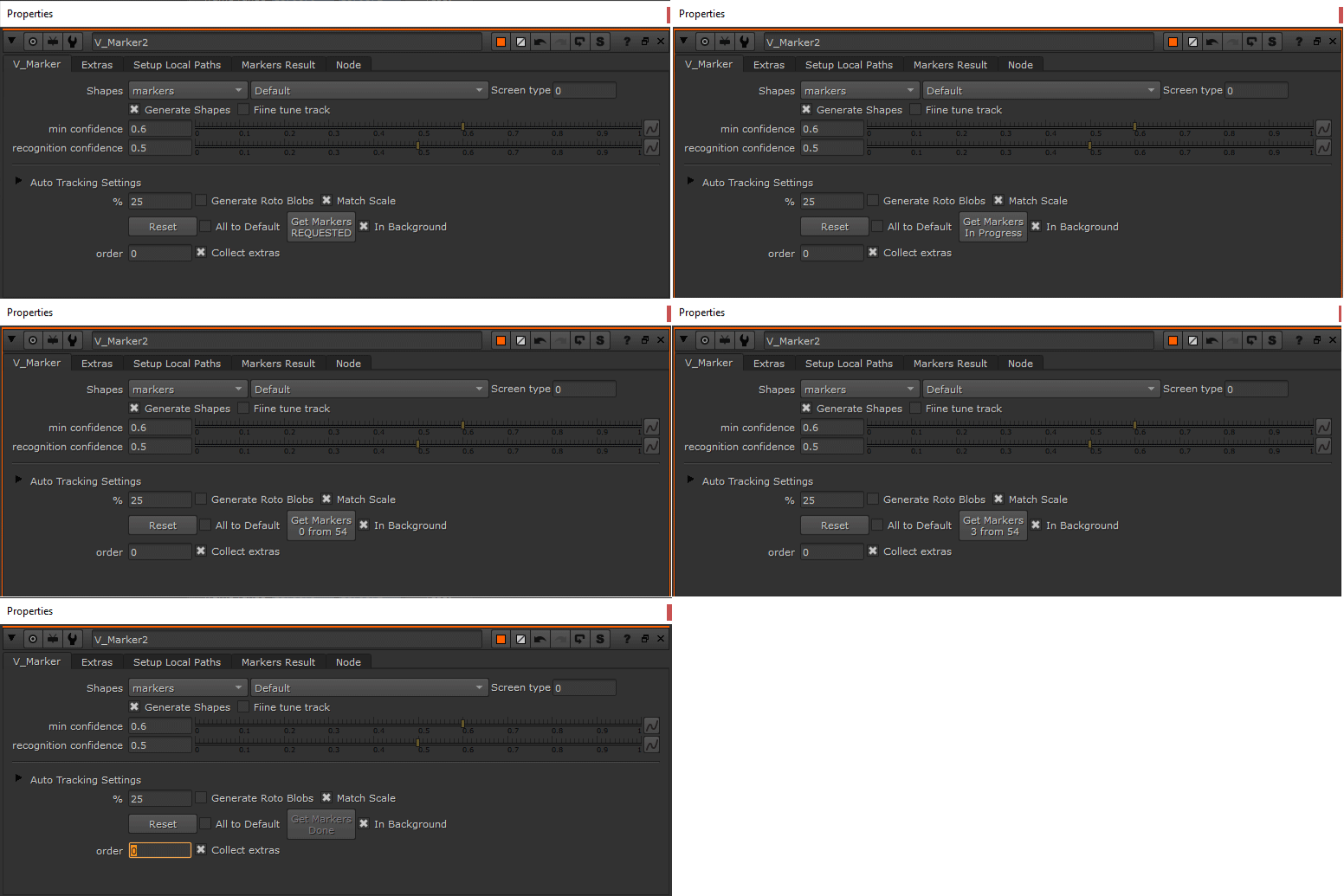
To check progress of prediction, just keep pressing the button in gizmo, it will return status inside. No more pop - ups!
Please let us know if you want to use this functionality in other tools from tech-va.
Dynamic Buttons (C) TECH-VA AUTOMATED SOLUTIONS INC.
Join our telegram channel for more support.
This documentation is in progress. last update: 12/05/2021